






You could already build AI agents in Betty Blocks, but it took a custom function step and your own code to connect a model. With this release, agents are built into the platform. There's no custom code and no separate setup per application.
An agent is a new type of action flow. You describe the goal and give it tools. The agent decides which tools to use, and in what order.
This release includes:
- AI providers in My Betty Blocks. IT admins set up AI providers and default models once, for the whole company. Every application built on the platform uses them. Anthropic is supported today. Google AI, OpenAI and Mistral follow in the coming weeks.
- AI agents overview: Find every agent in your application under AI agents (the robot icon) in the builder bar.
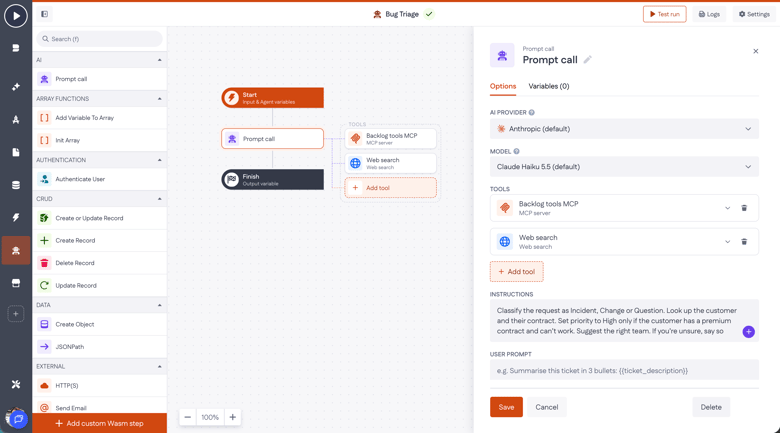
- Agent canvas: Each agent starts with three steps: Start, Prompt call and Finish.
- Prompt call step: Holds the agent's instructions and user prompt. It comes pre-configured with your company's default provider and model. You can change them when you create the agent, or later in the Prompt call.
- Tools: Connect the agent to Web search, an external MCP server, or your application's own Internal MCP server.
- Test run and logs. Run an agent from the canvas. The logs show the agent's answer, with its token usage in a separate variable.
- Usage tracking. Every run returns its token usage. Want a history of runs? Create a model in your app and store the usage there.
- Max tokens. Limit the length of each model response. Need more control, like a token budget? Use the usage variable to build your own checks in the app.
Why this matters
Governance by default. IT decides which AI providers and models the company uses. Builders pick from that approved list. No more API keys hidden in custom functions.
Reusability. Set up a provider once and every application can use it. Agents reuse the actions and MCP tools you've already built.
No code needed. Building an agent no longer takes a developer. Business technologists can build one in the visual environment they already know.
Insight into usage. Every run returns its token usage, so you can track costs and set your own limits.
One platform. Your data, processes and AI automations live in one place, not spread across external AI tools.
How to get started
For IT admins- Open My Betty Blocks and go to Company overview > AI providers.
- Add your AI provider and set the default models.
These settings apply to the applications you build, not to Betty Genius.
- In the builder bar, click AI agents, then +.
- Give your agent a name, a short description and a model. Click Create agent.
- Open Prompt call. Write the instructions as you would brief a new colleague.
- Click Add tool and connect web search or an MCP server.
- Click Test run, then Logs to see what the agent did.
Tip: give every tool a clear name and description. The agent uses them to decide when to call a tool.
Read the full guide, with a step-by-step example: AI agents documentation
Already using custom function steps for AI? They keep working. For new agents, we recommend the native approach.
Next steps
This is the first release. Next up: agents that work with files.
- Documents and files. Pass files into an agent from a record, a file property or an upload at runtime.
- Playbooks. Give agents rules, standards and fallback positions to follow. You can also use external documents as the rule source.
- External data. Connect an agent to an external data source through an existing Betty Blocks connector.
This makes document-heavy work possible, like contract review, compliance checks and intake routing.
After that, we'll focus on more governance and multi-agent orchestration.
That was all for now, your feedback allows us to continuously improve our product. Please let us know what you think about it. Happy building! 😃